Titus CRM · Junction · What's new

New Junction features, step by step

Everything in this guide went live on 09/10/2026 (PR #390 and PR #391) at app.titus-crm.com. Each section shows what it does, why it matters for South Australian Out of Home Care, and exactly where to click.

Live: 09/10/2026Junction organisation onlyAbout 15 minutes to test
1

AI coaching for freestyle voice Shift Notes

Youth worker app · Shift Notes

What it does

After a Youth worker records a freestyle voice Shift Note, Titus gives friendly feedback and a coached version. The worker then chooses whether to update their note.

Why it matters for Junction

Better notes mean clearer records for DCP. The worker's own words are always kept, and their choice is recorded, which SA OOHC record keeping expects.

Record a note and get coaching

  1. Open the Youth worker app and tap Shift Notes on the bottom bar.
  2. Tap New Shift Note.
  3. Choose Freestyle Voice Note.
  4. Tap record and talk through the shift in your own words. Tap stop when done.
  5. Titus shows four boxes:
    • In your own words saved exactly as said.
    • What's strong what the note already does well.
    • What needs some work gentle tips.
    • AI-coached Shift Note for reference only. It adds nothing that wasn't said.
  6. Answer Do you want to update? with Yes or No.
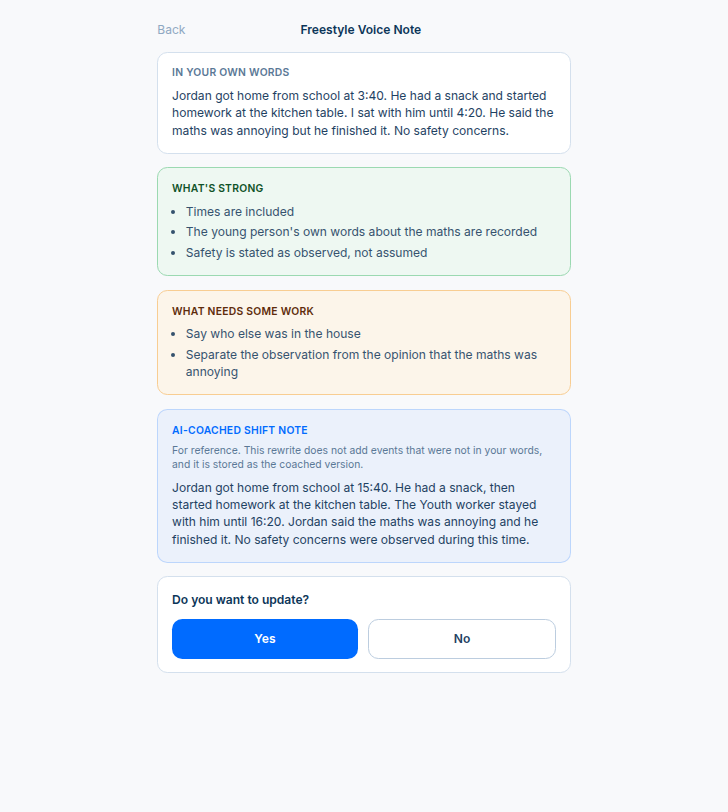
Freestyle Voice Note screen showing In your own words, What's strong, What needs some work, AI-coached Shift Note and the Yes / No question
The coaching screen. Jordan's note in the worker's own words, then what's strong, what needs some work, the AI-coached Shift Note, and "Do you want to update?"

If they tap Yes or No

  1. Yes A Your Shift Note box opens with their own words. The coached version stays visible above, so they can borrow from it.
  2. They edit the note and tap save.
  3. No The note is saved as is.
  4. Titus records "Youth worker chose not to update" in Shift Notes and in Contact History against the young person, with who and when. This is an SA OOHC record-keeping requirement.
Either way, the AI-coached version is always stored with the note.
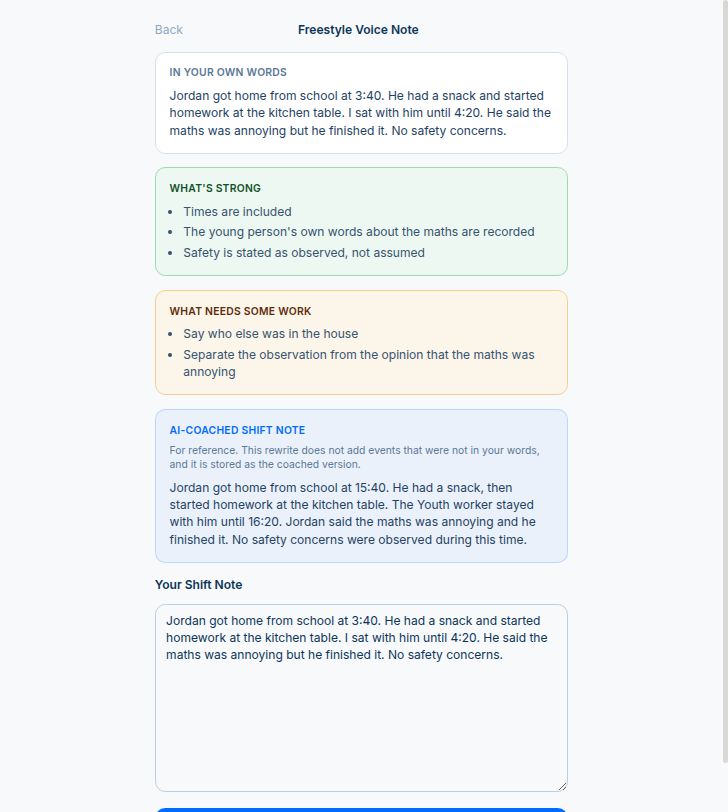
After tapping Yes, the Your Shift Note edit box appears under the coached version
After tapping Yes. The "Your Shift Note" box opens with the original words, ready to edit. The coached version stays on screen as a guide.

If AI coaching is unavailable

  1. The Youth worker records their note as normal.
  2. Titus shows a gentle notice that coaching isn't available right now.
  3. The note still saves and appears in their Shift Notes list as Submitted. Nothing is lost.
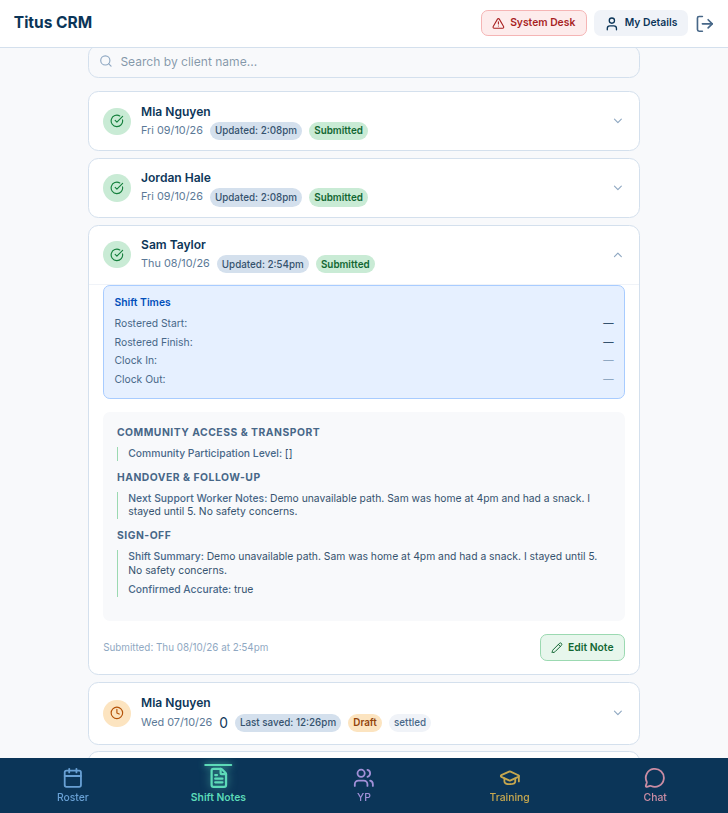
Shift Notes list in the Youth worker app with Sam Taylor's note shown as Submitted on Thu 08/10/26
Coaching unavailable, note still saved. Sam Taylor's test note ("Demo unavailable path") shows as Submitted on Thu 08/10/26 at 2:54pm, with an Edit Note button.

Good to know

  • Youth workers cannot edit the stored coached version. Only their own note is editable.
  • If AI is unavailable, the note still saves and a gentle notice shows. No one is blocked from finishing a shift.
  • The coached version never adds events. It only tidies what was said (for example, 3:40 becomes 15:40).
2

Office view: Shift note history

Office app · Staff record (or young person record) · Shift Notes

What it does

Office staff can see both versions of every coached Shift Note, the feedback, and whether the Youth worker updated or declined.

Why it matters for Junction

Managers can coach staff on note writing and show DCP a clear trail of what was said, what was suggested, and what was chosen.

Find it

  1. In the office app, open the staff member (for example Riley Chen). You can also start from the young person's record.
  2. Go to Service Records, then the Shift Notes sub-tab.
  3. Look at Shift note history. Tap a note to expand it.
  4. You'll see a heading that says either "Youth worker updated the Shift Note" or "Youth worker chose not to update", then:
    • In your own words
    • Updated note (if they updated)
    • What's strong and What needs some work
    • AI-coached version
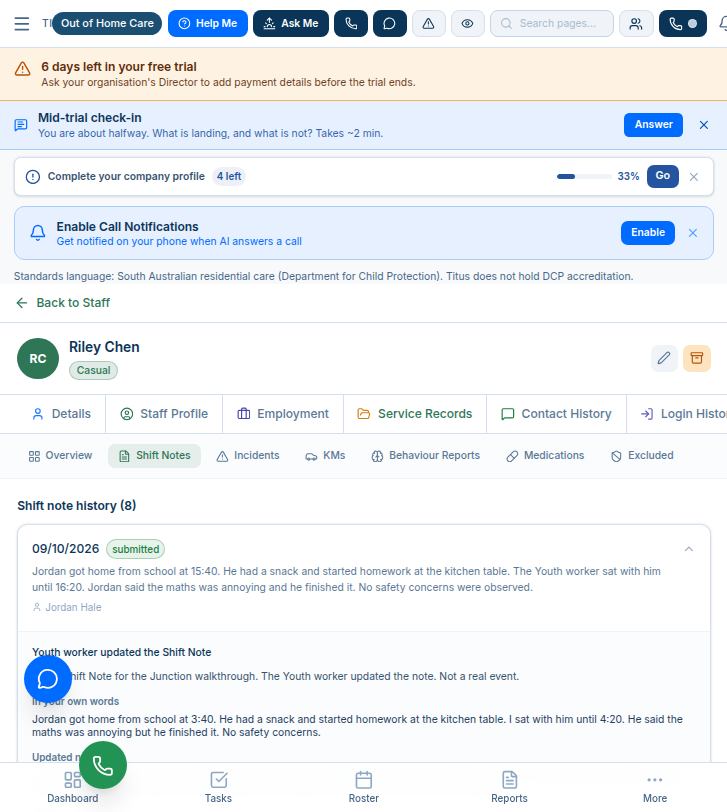
Riley Chen staff record, Shift note history showing a note where the Youth worker updated the Shift Note
Updated. Riley Chen's Shift note history (8). The 09/10/2026 note for Jordan Hale shows "Youth worker updated the Shift Note", then the original words.

When the worker said No

  1. Expand the note. The heading reads "Youth worker chose not to update".
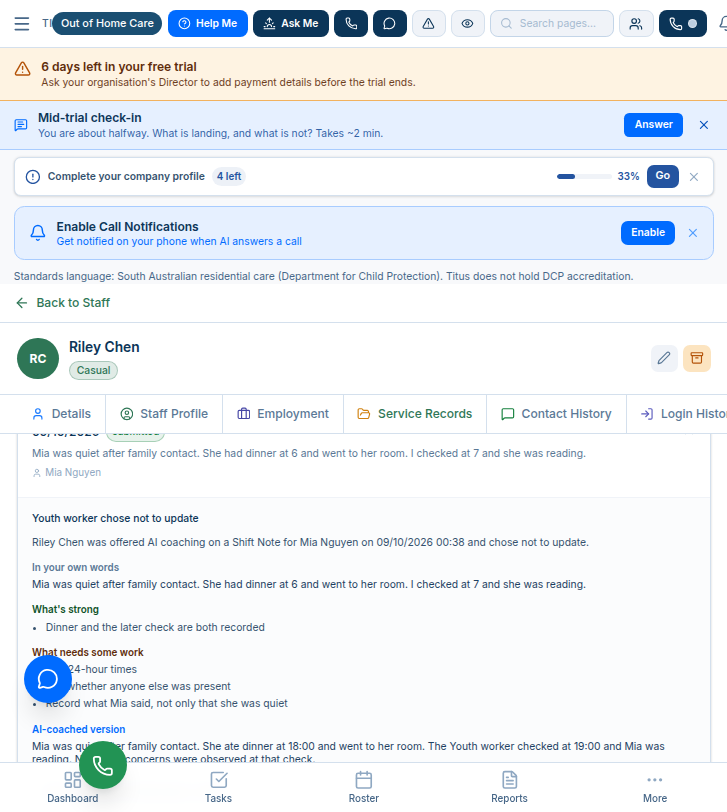
  2. A plain line records who, which young person and when. Here: Riley Chen was offered AI coaching on a Shift Note for Mia Nguyen on 09/10/2026 at 00:38 and chose not to update.
  3. The feedback and the AI-coached version are still there for you to read.
Shift note history showing Youth worker chose not to update, with own words, feedback and AI-coached version
Declined. Mia Nguyen's note: "Youth worker chose not to update", with the worker's own words, what's strong, what needs some work, and the AI-coached version.

Good to know

  • The same "chose not to update" entry also appears in the young person's Contact History.
  • Use this view for supervision: the "What needs some work" tips are a ready-made coaching agenda.
3

Roster-based access for Youth workers

Youth worker app · YP tab (and all data behind it)

What it does

A Youth worker only sees the young people they're rostered to, in a rolling 14-day window.

Why it matters for Junction

Young people's information stays on a need-to-know basis. That protects their privacy.

The 14-day window (Adelaide time)

◀ 7 days back
Today
7 days ahead ▶
Roster-filtered: Youth workers
Still see everyone: Directors, Managers, Team Leaders and office staff
  • House shifts count for the current residents of that house.
  • Cancelled or deleted shifts don't count.
  • It's enforced on the server. Even a direct data request returns nothing for a young person they're not rostered to.

What a Youth worker sees

  1. Log in to the Youth worker app as a real Youth worker.
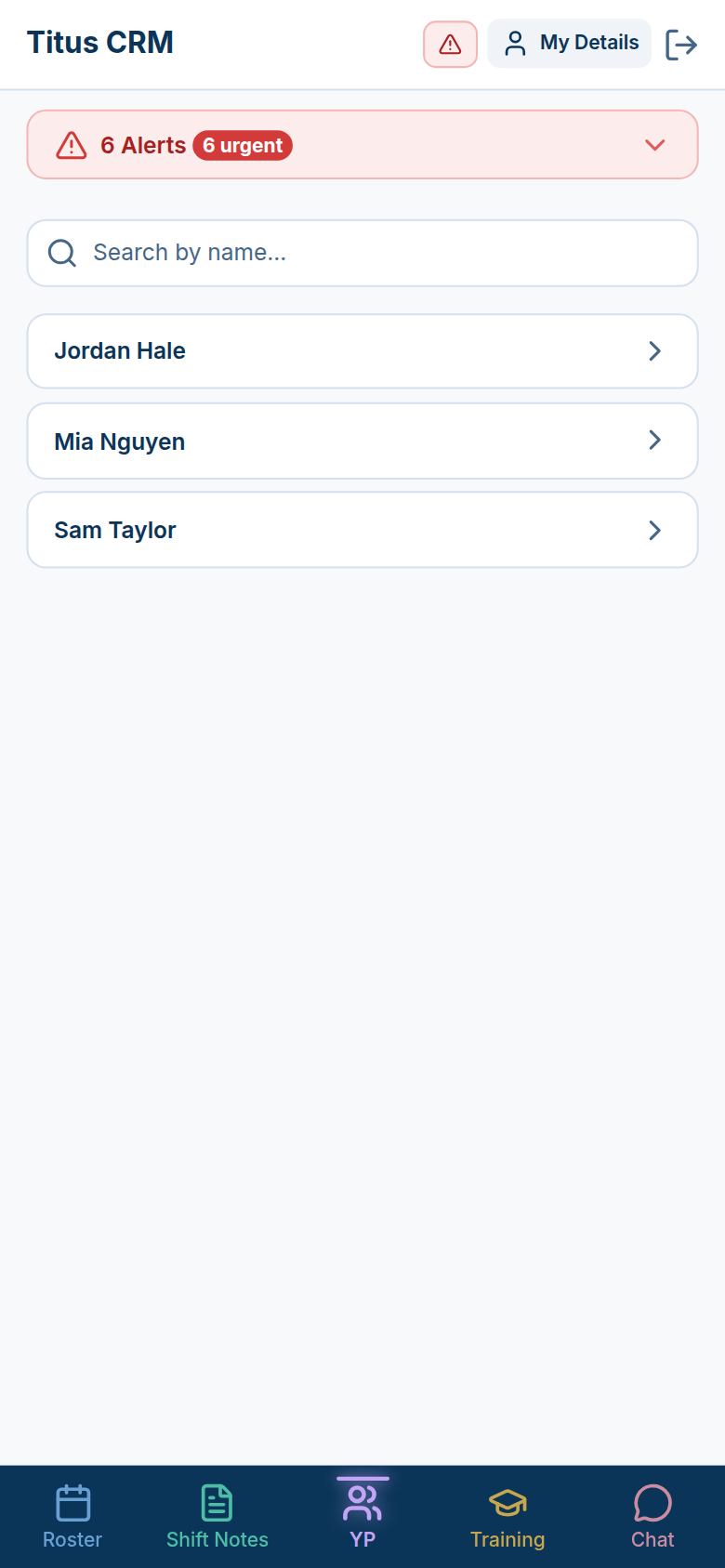
  2. Tap the YP tab. Only the young people on their roster are listed.
  3. If they open a link to anyone else, they see this instead of the young person's details:
Message: This young person isn't on your shifts in the last or next 7 days.
Not rostered. "This young person isn't on your shifts in the last or next 7 days."
Access covers a rolling 14 days: 7 days back and 7 days ahead. It moves forward each day.
3 of 7
In testing, a Youth worker saw 3 of Junction's 7 young people: the ones they were rostered to.
YP tab listing Jordan Hale, Mia Nguyen and Sam Taylor
Rostered only. The YP tab lists just Jordan Hale, Mia Nguyen and Sam Taylor.

Good to know

  • The office View As button sits in the office header, right next to System Desk (tooltip: "View app as another user"). On smaller screens only an eye icon shows. It uses the office login, so it is not roster-filtered. To test properly, log in as a real Youth worker.
  • A Youth worker with no shifts in the window sees no young people. If someone says "my list is empty", check their roster first.
  • Junction's pay-period anchor date isn't set yet, so Titus uses the rolling 14 days rather than the pay fortnight.
Office header showing Chat, System Desk, View As with an eye icon, and Search pages
Where View As lives. In the office header, right after System Desk.
4

Cost centres in Projects

Office app · Finance › Projects › Cost centres

What it does

Group projects into cost centres and see Titus spend (expenses plus wages) for each one, side by side with Xero or MYOB and the difference.

Why it matters for Junction

Junction can see what each area, like Residential care, really costs and check it against the books without a spreadsheet.

Set up cost centres

  1. Go to Finance › Projects and tap the Cost centres card.
  2. Tap New cost centre to create one. Edit or archive it from its row. Tick Show archived to see archived ones.
  3. Assign projects to a cost centre. Each row shows the number of projects and young people.
  4. On the right of each row: Titus spend, the comparison figure, and the Difference (Titus − comparison).
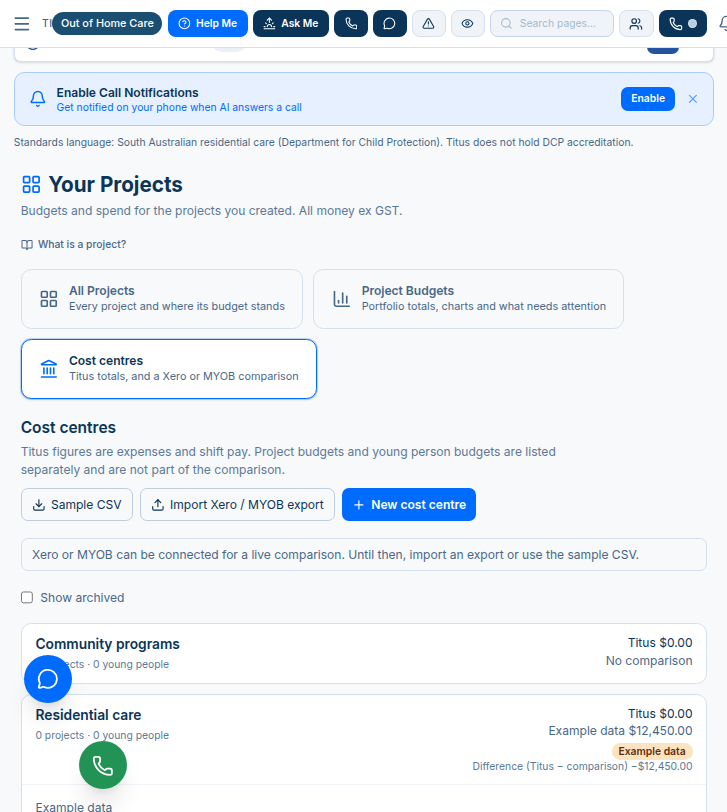
Residential care is seeded with Example data ($12,450.00) so the demo has something to show. It's clearly tagged "Example data".
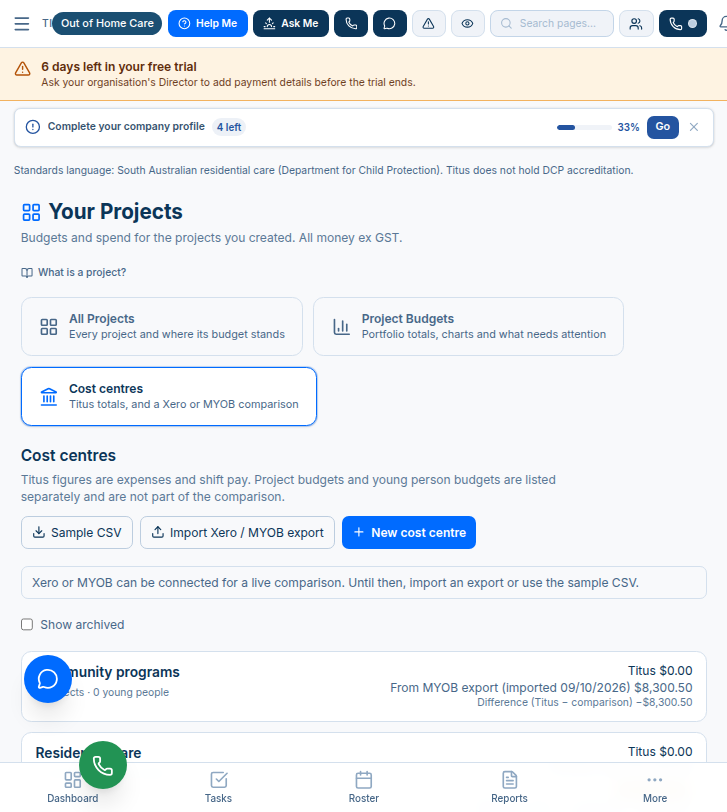
Cost centres page with Sample CSV, Import Xero / MYOB export and New cost centre buttons, and Residential care showing Example data
Cost centres page. Sample CSV, Import Xero / MYOB export and New cost centre buttons. Community programs has no comparison yet; Residential care shows the Example data tag.

Import from Xero or MYOB

Junction has no Xero or MYOB connected, so use an export.

  1. Tap Sample CSV to download the template, so you can see the layout.
  2. Export from your accounts package:
    • Xero: Profit and Loss by tracking category
    • MYOB: job or category report
  3. Tap Import Xero / MYOB export and upload the file.
  4. If the column headings differ, map the columns (cost centre name, amount, period).
  5. Choose the source (Xero or MYOB) and import.
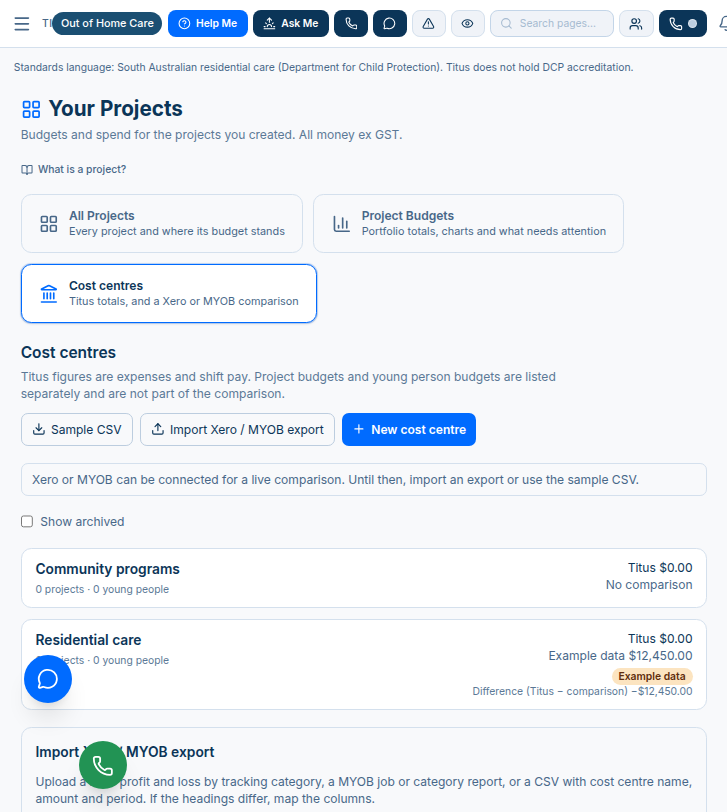
Import Xero / MYOB export panel opening at the bottom of the cost centres page
The import panel. It opens below the list and explains what to upload: a Xero P&L by tracking category, a MYOB job or category report, or a CSV. Map the columns if headings differ.

Check the result

  1. Imported figures are labelled with their source and date, for example "From MYOB export (imported 09/10/2026)" or "From Xero export (imported dd/mm/yyyy)".
  2. Read the Difference line. A big gap means spend is missing from Titus or coded differently in the books.
Community programs row showing From MYOB export (imported 09/10/2026) $8,300.50
After importing. Community programs now shows "From MYOB export (imported 09/10/2026) $8,300.50" and the difference against Titus.

Good to know

  • Titus figures are expenses and shift pay. Project budgets and young person budgets are shown separately and aren't part of the comparison. All money is ex GST.
  • Where a live Xero or MYOB connection exists, it takes priority over imported figures.
  • Youth workers can't see cost centres.
5

The "YP" bottom tab

Youth worker app · bottom bar

What it does

In the Youth worker app, the bottom tab now reads YP, so it fits neatly next to Roster, Shift Notes, Training and Chat.

Why it matters for Junction

It's short and familiar for Youth workers, while everything else still says "Young person" in full, as records should.

Where you'll see it

  1. Open the Youth worker app and look at the bottom bar: Roster, Shift Notes, YP, Training, Chat.
  2. Tap YP to see the young people you're rostered to.
  3. Screen titles, Shift Notes and Contact History still say Young person. Only the tab is shortened.
Youth worker app with the YP tab highlighted on the bottom bar
The YP tab. Highlighted in the middle of the bottom bar.
6

Also live now (9 Oct)

PR #391 · Office app and Youth worker app

What's new

An authenticator app (MFA) you can require per organisation, one-tap procedure buttons for Youth workers, DCP wording on incidents, and a few small fixes.

Why it matters for Junction

Young people's records are better protected, and Youth workers get clear steps at the hardest moments of a shift.

ARequire an authenticator app (MFA)

It ships OFF for every organisation, including Junction. Nothing changes until you turn it on.

Turn it on

  1. In the office app, go to Settings, then Organisation, then Security.
  2. Tick Require authenticator.
  3. Under Who must use it, pick Directors, Managers and Team Leaders or All users.
  4. Click Save security.
  5. To turn it off, untick the same box and click Save security again.
Tip: switch it on for leaders first. Once they're comfortable, move to All users.
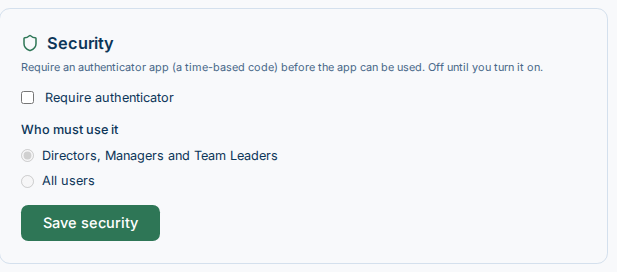
Security card with a Require authenticator checkbox, Who must use it options Directors, Managers and Team Leaders or All users, and a Save security button
The Security card. "Require an authenticator app (a time-based code) before the app can be used. Off until you turn it on." The box is unticked here, and the two choices stay greyed out until you tick it.

What users then see

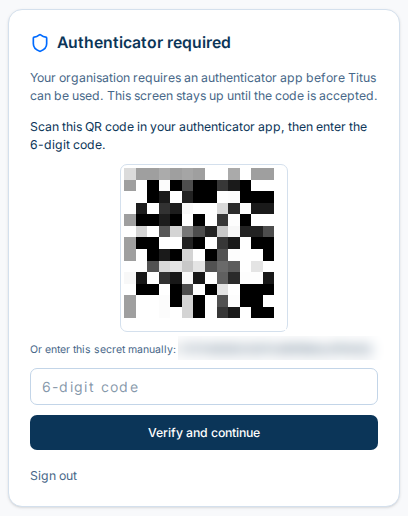
  1. First time: an "Authenticator required" screen with a QR code. They scan it with an authenticator app, type the 6-digit code and tap Verify and continue.
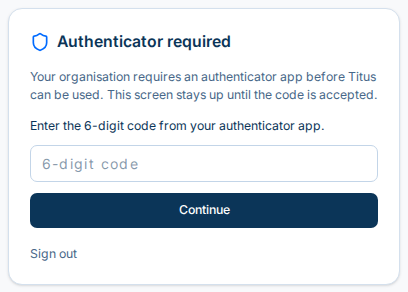
  2. After that: each time, they enter the 6-digit code from the app and tap Continue.
  3. Until they pass, care records stay hidden: young people, Shift Notes, incidents, medications, house records and missing-from-placement reports.
Authenticator required screen with a QR code, a 6-digit code box and a Verify and continue button
First time. Scan the QR code, enter the 6-digit code, then Verify and continue. (Code blurred here.)
Authenticator required screen asking for the 6-digit code from the authenticator app, with a Continue button
Every time after. Enter the 6-digit code from the app and tap Continue. There's a Sign out link too.

BOne-tap procedure buttons

On a young person's page

  1. A Youth worker opens a young person from the YP tab.
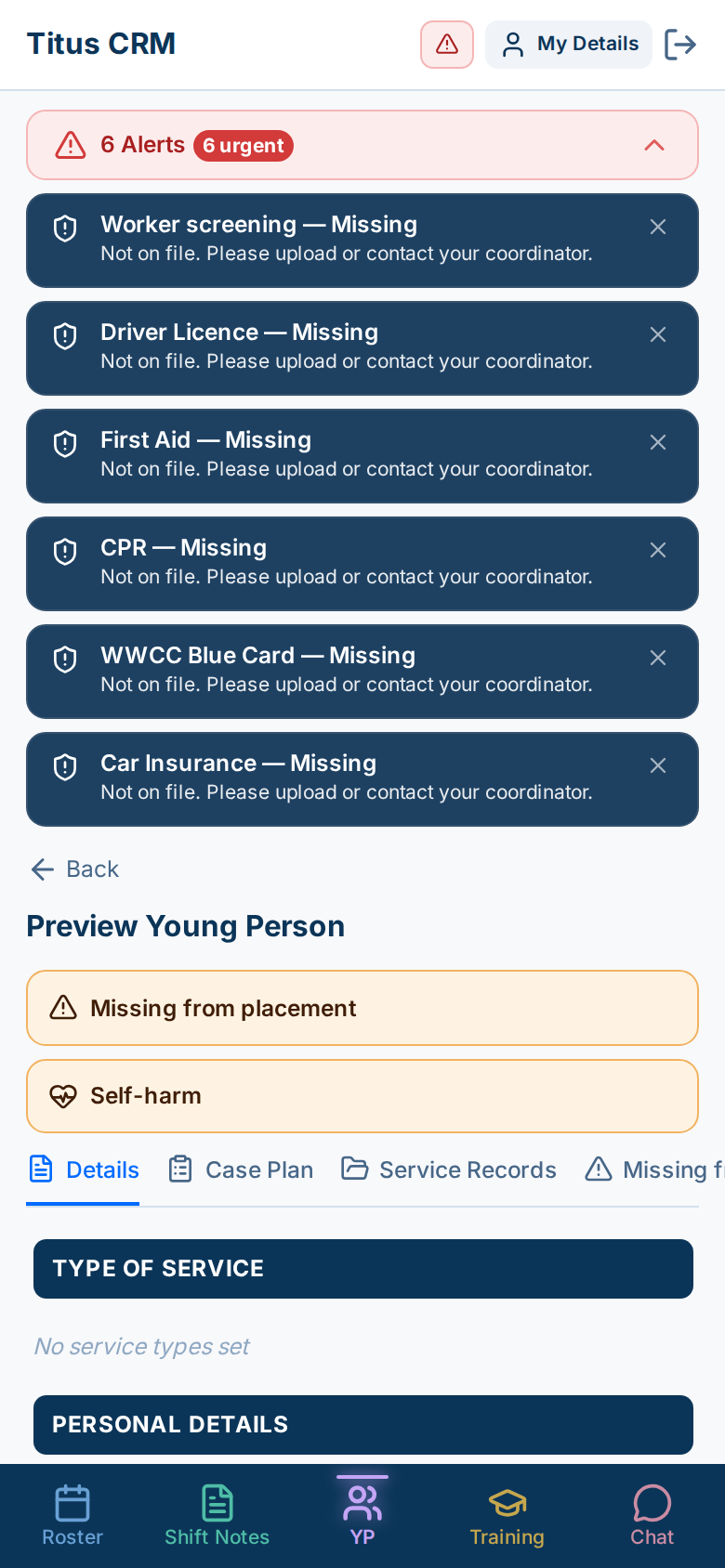
  2. Two buttons sit at the top: Missing from placement and Self-harm.
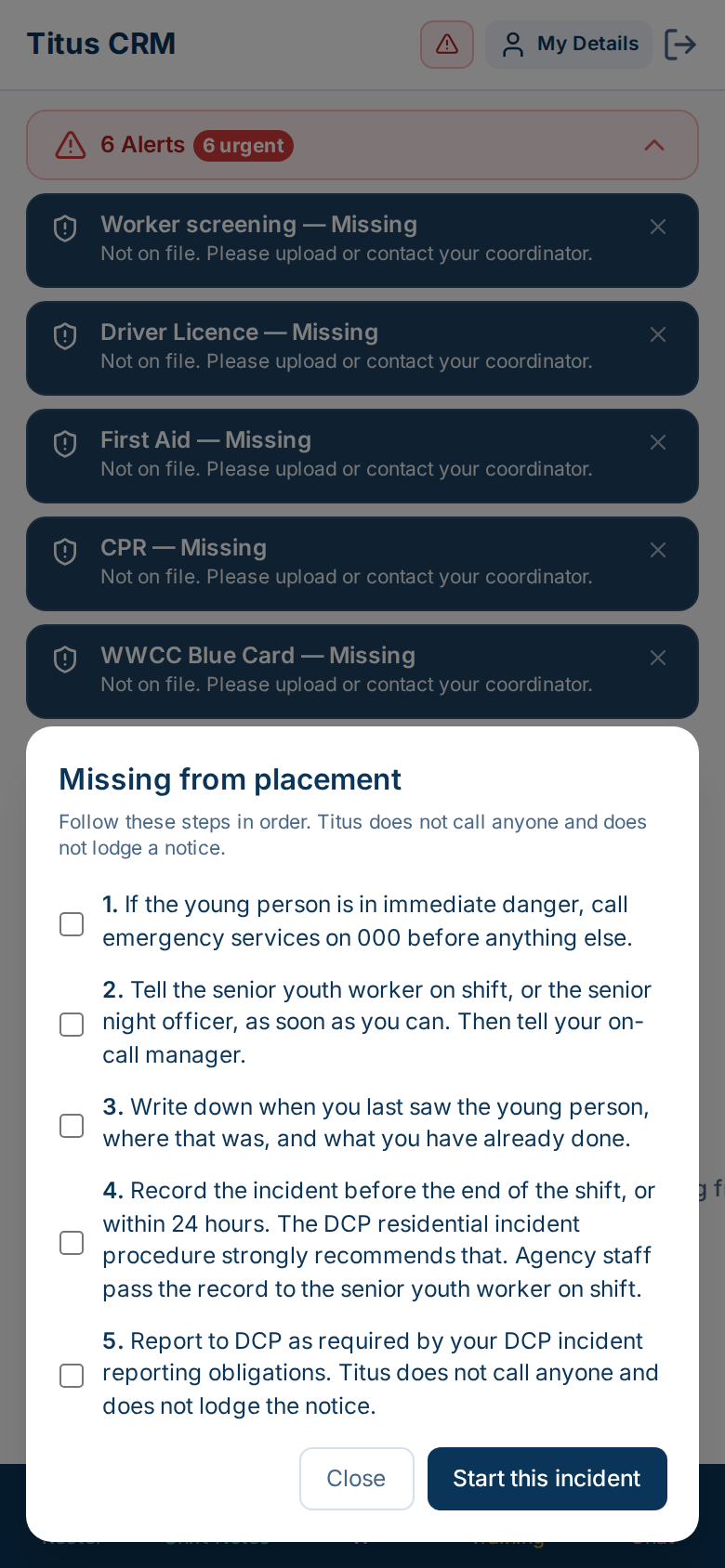
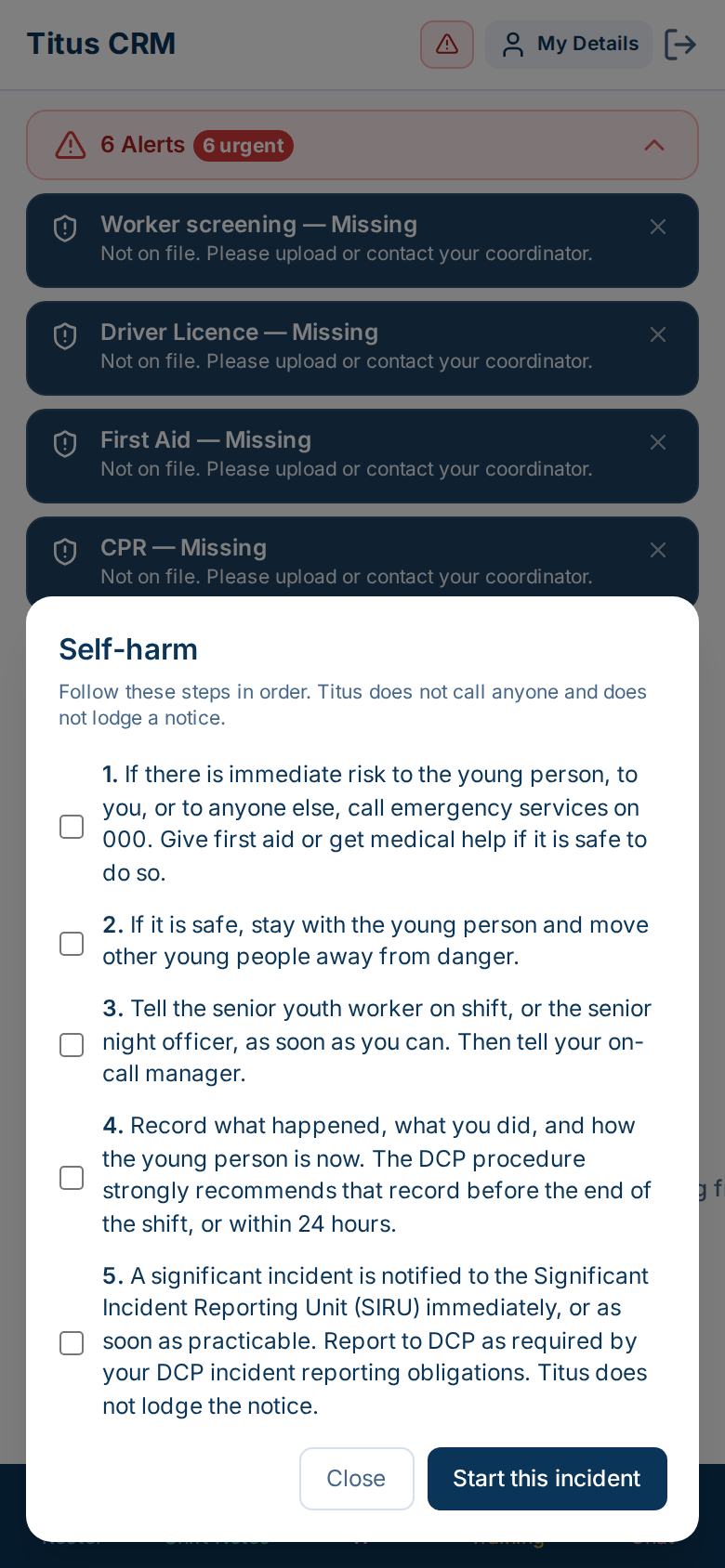
  3. Each one opens a step-by-step checklist the worker can tick off.
  4. Tap Start this incident to begin the incident from there, or Close to go back.
The steps are fixed for now. Junction admins can't edit them yet.
Young person page in the Youth worker app with Missing from placement and Self-harm buttons above the Details tab
The two buttons. Missing from placement and Self-harm, just above the Details, Case Plan and Service Records tabs. The alerts above it now say "Worker screening".

What the checklists say

  1. Missing from placement: call 000 if they're in immediate danger, tell the senior youth worker or senior night officer, then the on-call manager. Write down when and where you last saw them, record the incident, and report to DCP.
  2. Self-harm: call 000 if anyone is at immediate risk and give first aid if it's safe. Stay with the young person, move others away from danger, tell the senior on shift, record what happened, and report to DCP.
  3. Both say up top: "Titus does not call anyone and does not lodge a notice."
Missing from placement checklist with five steps and Close and Start this incident buttons
Missing from placement. Five steps, then Start this incident.
Self-harm checklist with five steps and Close and Start this incident buttons
Self-harm. Five steps, then Start this incident.

CIncidents now use SA DCP wording

What changed

  1. The old national deadlines are gone from Junction's incidents.
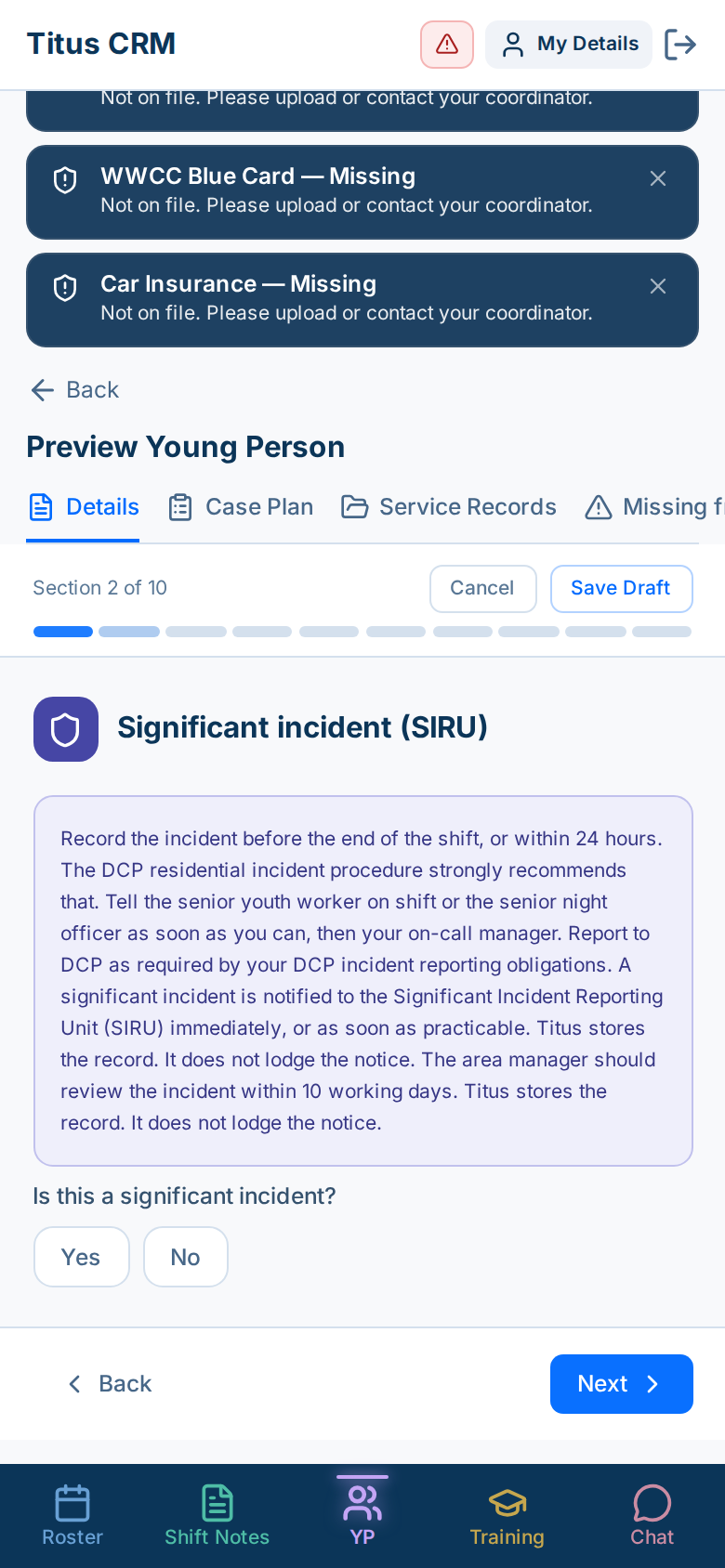
  2. Incidents now say: "Report to DCP as required by your DCP incident reporting obligations".
  3. No statutory deadline is set, because we haven't confirmed it yet. Titus stores the record. It doesn't lodge the notice.
Incident form, Significant incident section, with guidance that includes Report to DCP as required by your DCP incident reporting obligations
Significant incident step. Section 2 of 10 of the incident form. The guidance includes "Report to DCP as required by your DCP incident reporting obligations", then asks "Is this a significant incident?"

DSmaller fixes

Tidied up for Junction

  1. Junction's timezone is now Adelaide (it was Melbourne).
  2. Their registration status is now unregistered.
  3. The install text is now neutral.
  4. The worker alert now says "Worker screening".
  5. NDIS customers are unchanged.
A test NDIS organisation's Reports and Documentation page, looking the same as before
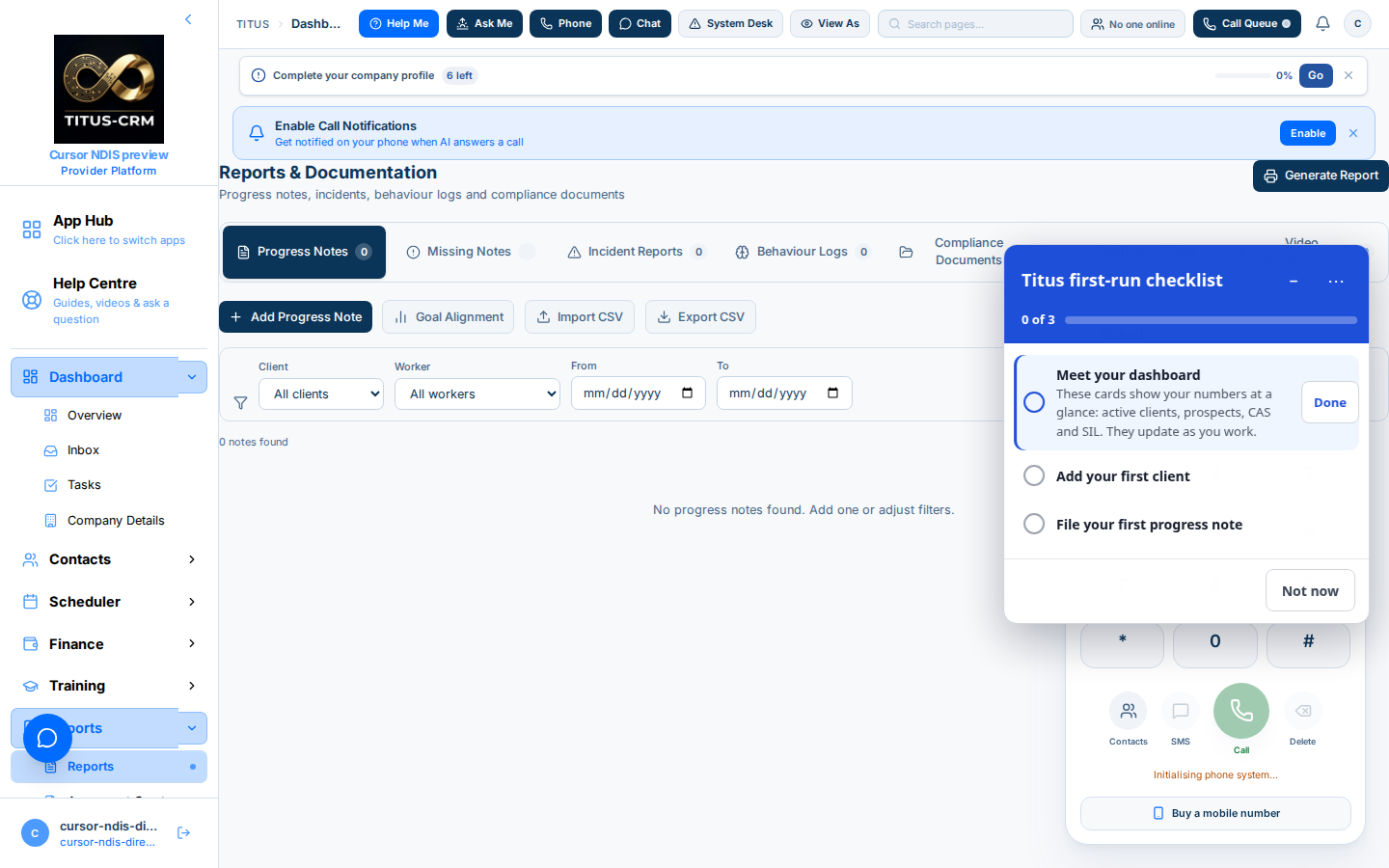
Other organisations unchanged. A test NDIS organisation still has its own menus and wording, exactly as before.

New wording you'll notice

  1. The search box now reads "Search by young person's name…".
  2. In a Youth worker's Shift Note, the handover step and its box are now called "Handover notes for the next shift".
Search box reading Search by young person's name…
The search box. "Search by young person's name…"
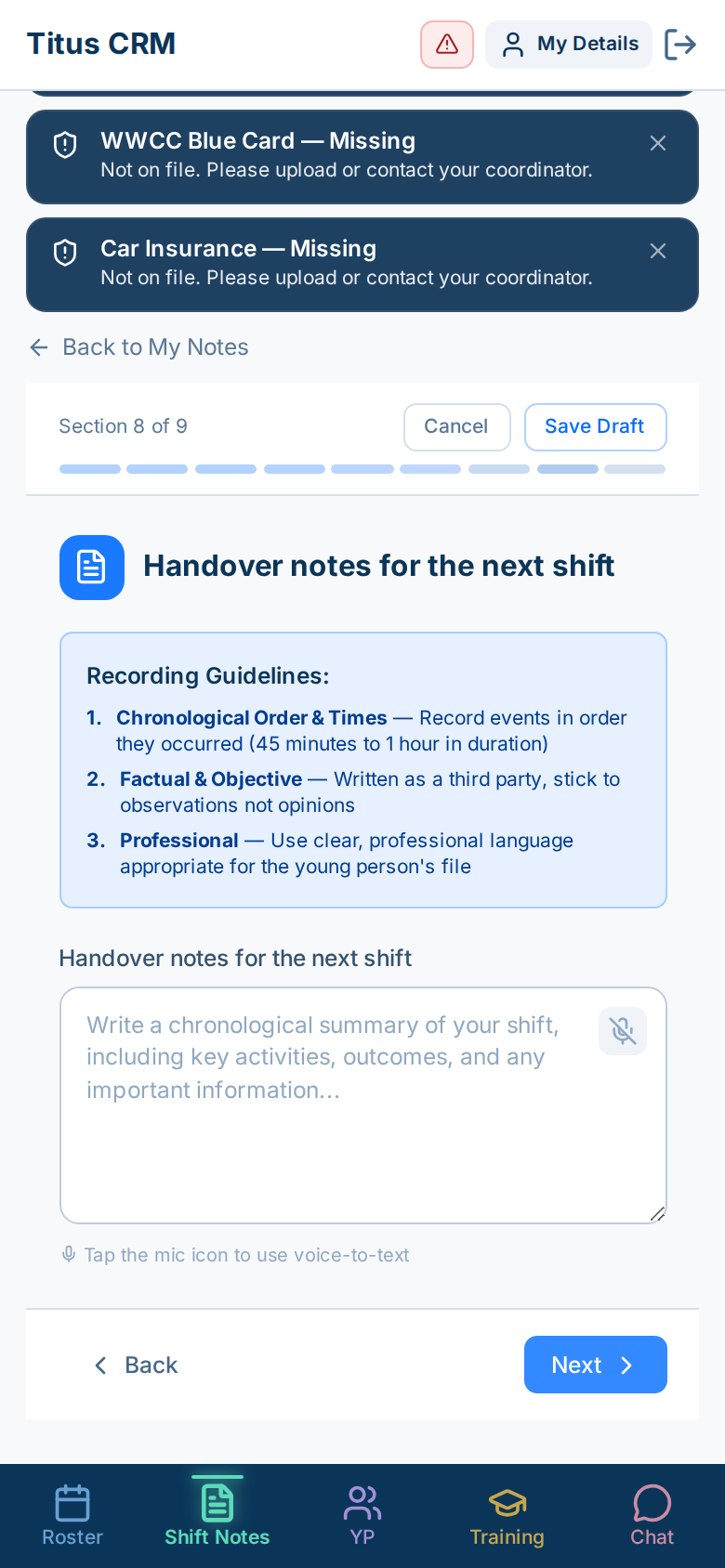
Shift Note section 8 of 9 titled Handover notes for the next shift, with recording guidelines and a text box
Handover step. Section 8 of 9 of a Shift Note. Heading and box label both read "Handover notes for the next shift".

EStill to do

Not finished yet

  • Incident PDFs and LMS content still carry some NDIS wording.
  • Procedure steps aren't editable yet.
✓

Junction only, and how to test it yourself

About 15 minutes

Switched on for Junction only

Sections 1 to 5 are turned on just for the Junction organisation. Other organisations, such as Right4YouCare, are unchanged.

The authenticator setting (section 6) is there for every organisation, but it's off until someone turns it on.

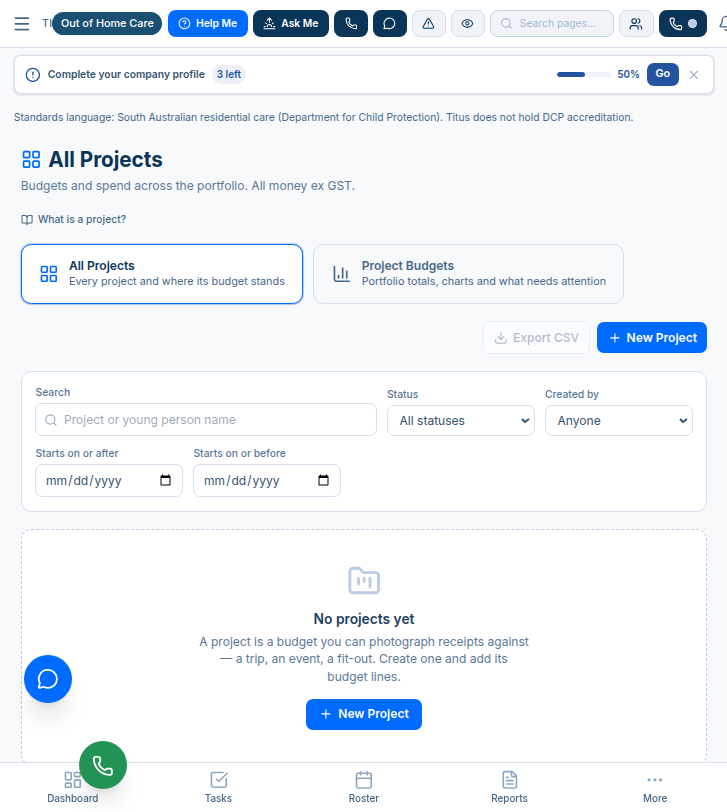
Their Projects page still has only All Projects and Project Budgets. There's no Cost centres card.

Another organisation's All Projects page with only All Projects and Project Budgets cards
Another organisation. Projects shows only All Projects and Project Budgets, with no Cost centres card.

How to test it yourself in 15 minutes

  1. Log in to app.titus-crm.com as a real Junction Youth worker (not the office View As button next to System Desk).1 min
  2. Check the bottom bar says YP. Tap it and confirm only rostered young people show.1 min
  3. Open a link to a young person they're not rostered to. Expect "This young person isn't on your shifts in the last or next 7 days".1 min
  4. Shift Notes › New Shift Note › Freestyle Voice Note. Record a short note and stop.2 min
  5. Check the four boxes appear. Tap No.1 min
  6. Record a second note, tap Yes, edit and save.1 min
  7. Log in as office. Open that Youth worker's record › Service Records › Shift Notes. Check one "updated" and one "chose not to update".1 min
  8. Open the young person's Contact History and find the "chose not to update" entry.1 min
  9. Finance › Projects › Cost centres. Download the Sample CSV, then import it as MYOB and check the "From MYOB export (imported …)" label.1 min
  10. Settings › Organisation › Security. Tick Require authenticator, pick Directors, Managers and Team Leaders, and click Save security. Then log in as a Director and enrol with an authenticator app.2 min
  11. As a Youth worker, open a young person and tap Missing from placement. Check the steps show, then tap Close.1 min
  12. Open an incident and check it says "Report to DCP as required by your DCP incident reporting obligations".1 min
  13. Optional: log in to a non-Junction organisation and confirm there's no Cost centres card.bonus